
Introduction (2026 Context)
Agar aap AI voice distortion in CapCut jaisi problem face kar rahe ho, jahan narration robotic ya unclear lag rahi hai, to ye guide aapke liye hai.
2026 me short-form content ka craze aur bhi zyada badh gaya hai. Reels, Shorts aur AI-generated narration ab almost har creator use kar raha hai. Especially beginners ke liye CapCut ek powerful aur easy video editing app hai jisme text-to-speech aur AI voice features milte hain.
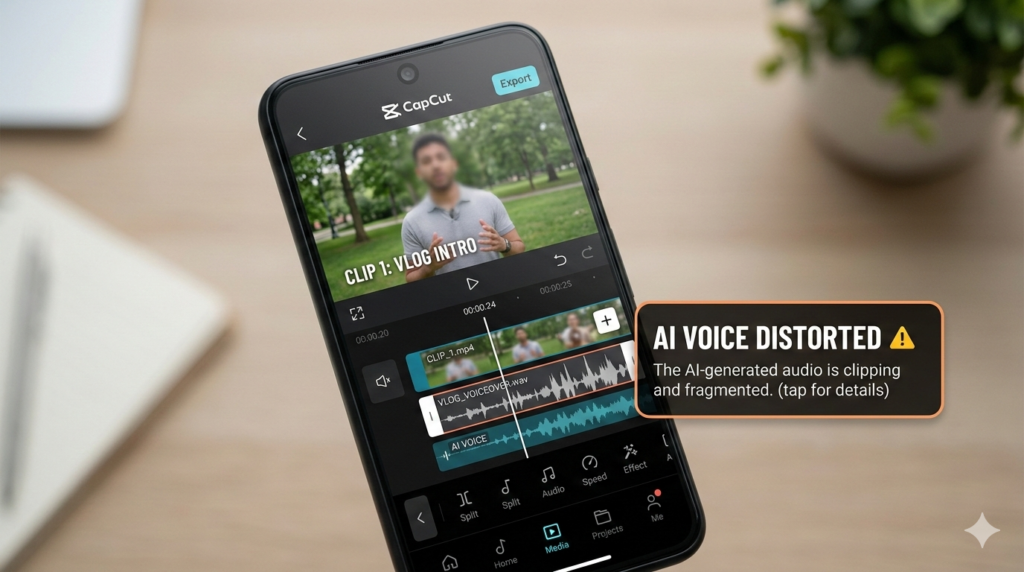
Lekin ek common problem jo Indian creators face kar rahe hain — AI voice distorted in CapCut.
Kabhi voice robotic lagti hai, kabhi crackling sound aata hai, kabhi pitch ajeeb ho jati hai. Agar aap bhi ye issue face kar rahe ho, to tension mat lo.
Is guide me aapko exact reasons + practical fixes milenge jo 2026 me working hain
Agar aap beginner ho aur AI basics clear nahi hain, to pehle yeh samajhna zaroori hai ki AI kya hai aur kaise kaam karta hai Jab foundation strong hoti hai tab aise technical issues ko samajhna aur solve karna kaafi easy ho jata hai.
Why AI Voice Distortion Happens in 2026
AI voice technology improve ho rahi hai, lekin kuch technical factors abhi bhi distortion create karte hain:
- Low export bitrate
- Background processing overload
- Wrong audio format
- Old app version
- Internet instability (cloud processing ke time)
Kai beginners sochte hain ki AI tool kharab hai. Reality me mostly settings ka issue hota hai.
Example: Ek student ne YouTube Shorts banate waqt notice kiya ki narration metallic lag rahi thi. Problem simple thi — export quality “Low” pe set thi.
Step-by-Step Guide: Robotic Voice Fix Karne ka Exact Tarika
Neeche diye gaye steps follow karke aap AI voice distortion in CapCut easily solve kar sakte hain.
Chaliye ab practical solution dekhte hain.
Step 1: App Update Check Karo
Sabse pehle CapCut ko latest version me update karo. Purane builds me voice engine bugs hote hain.
Agar aapko latest features ya updates confirm karne hain, to aap CapCut official support page bhi check kar sakte hain jahan se verified information milti hai.
Step 2: High-Quality Voice Select Karo
Text-to-speech me default voice use mat karo.
Premium ya “natural tone” voices usually better output deti hain.
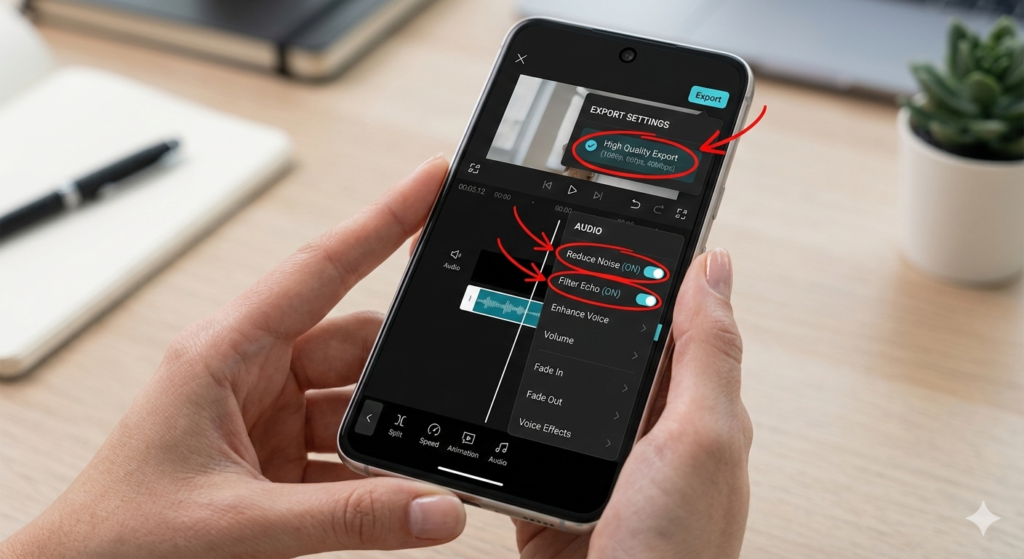
Step 3: Background Noise Remove Karo
Agar aap original recording ko AI se enhance kar rahe ho:
- Noise reduction ON karo
- Echo reduction enable karo
Step 4: Export Settings Optimize Karo
Ye sabse important hai.
- Resolution: 1080p
- Frame rate: 30fps
- Audio bitrate: High quality
Low bitrate se sound compressed aur distorted lagta hai.
Step 5: Device Performance Check
Editing ke time unnecessary apps band karo.
Low RAM ya overheating bhi processing issue create karta hai.
Step 6: Internet Stable Rakho
Agar AI voice cloud-based process ho rahi hai to stable WiFi use karo.
SEO Tips for Bloggers (AI Voice Topic Rank Karne ke Liye)
Agar aap is topic par blog likh rahe ho, to sirf problem explain mat karo — search intent samjho.
1. Tool-Specific Articles Likho
Generic “AI voice problem” ke bajaye tool-based content likho.
Example:
- CapCut AI voice crackling fix
- CapCut text to speech robotic sound solution
- AI narration not clear in CapCut
Ye long-tail keywords low competition me rank karte hain.
2. Real Screenshots Add Karo
Google Helpful Content guidelines ke hisaab se real experience important hai.
3. FAQ Section Add Karo
Voice related beginner questions include karo.
4. Over-Optimization Avoid Karo
Focus phrase ko naturally use karo, har paragraph me repeat mat karo.
Agar aap AI niche me apna blog grow karna chahte ho, to sirf tools nahi balki strategy bhi samajhni hogi. Iske liye aap AI blogging basics for beginners guide zaroor padhein, jisse aapko proper structure aur ranking approach clear ho jayegi.
Common Mistakes + Solutions
Mistake 1: Low Quality Export
Solution: High bitrate select karo.
Mistake 2: Multiple Audio Layers Overlap
Solution: Timeline me unnecessary layers delete karo.
Mistake 3: Cheap Earphones se Check Karna
Solution: Proper headphones me audio test karo.
Mistake 4: Speed Too Fast
Agar narration speed 1.5x pe set hai to robotic lagegi.
Normal speed use karo.
Mistake 5: Old Device
Kabhi-kabhi problem device limitation hoti hai, app nahi
FAQs (Beginner Friendly)
1. CapCut me AI voice robotic kyun lagti hai?
Mostly export settings ya wrong voice selection ki wajah se.
2. Kya free version me distortion zyada hota hai?
Kabhi-kabhi free voices limited quality ki hoti hain.
3. Best audio format kya hai?
MP4 with high bitrate audio recommended hai.
4. Kya internet speed matter karti hai?
Haan, especially jab AI processing cloud-based ho.
5. Kya phone me edit karne se issue hota hai?
Low-end devices me ho sakta hai.
6. Kya AI narration professional use ke liye safe hai?
Haan, agar proper settings use karo to.
Real-Life Blogging Insight
Maine dekha hai ki India me beginners simple tutorials search karte hain jaise:
- “AI voice not clear fix”
- “text to speech robotic sound kaise thik kare”
- “CapCut voice distortion problem solution”
Agar aap in variations ko naturally article me include karte ho, to traffic stable mil sakta hai.
Content creation ko fast aur smart banane ke liye aap top AI tools for writing blog posts</ bhi explore kar sakte hain. Ye tools beginners ko quality content likhne me kaafi help karte hain.
Conclusion
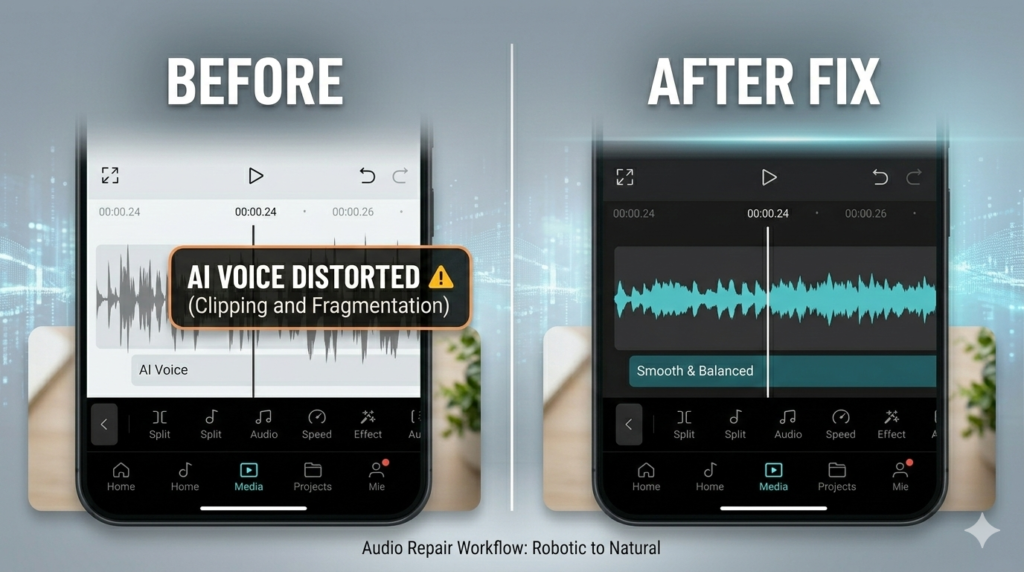
AI tools powerful hain, lekin sahi settings ke bina output perfect nahi milta.
Agar aap AI voice distorted in CapCut jaisi problem face kar rahe ho, to pehle:
- App update karo
- Voice setting check karo
- Export quality high rakho
- Device performance optimize karo
90% cases me issue solve ho jata hai.
Content creators ke liye sabse important cheez hai experimentation. Different voices test karo, settings tweak karo, aur final export ko headphones me check karo.
Agar aap blogging kar rahe ho, to is topic par tool-specific aur solution-based content likho. Long-term me aise practical guides hi Google me rank karte hain.
In simple settings tweaks se AI voice distortion in CapCut jaise issues 90% cases me fix ho jate hain.